Editor blocks you do not need can now be turned off
The layout menu got toggles for the blocks: HTML, CSS, JS, Result and Console. Keep, say, only JS and the console — and the set is saved with the pen.
The Penlab editor has always had five blocks: the HTML, CSS and JS panels, the result and the console. Now any of them can be turned off. If you are writing a small program that only needs the console, keep JS and the console, and nothing else on the screen pulls your attention away from the code.
Where the blocks are turned on
The editor header has a layout button — "Layout and panels". Its menu used to hold only three layouts: editors left, on top or right. Now there are five toggles under the divider: HTML, CSS, JS, Result and Console. A square on the right marks the blocks that are on.
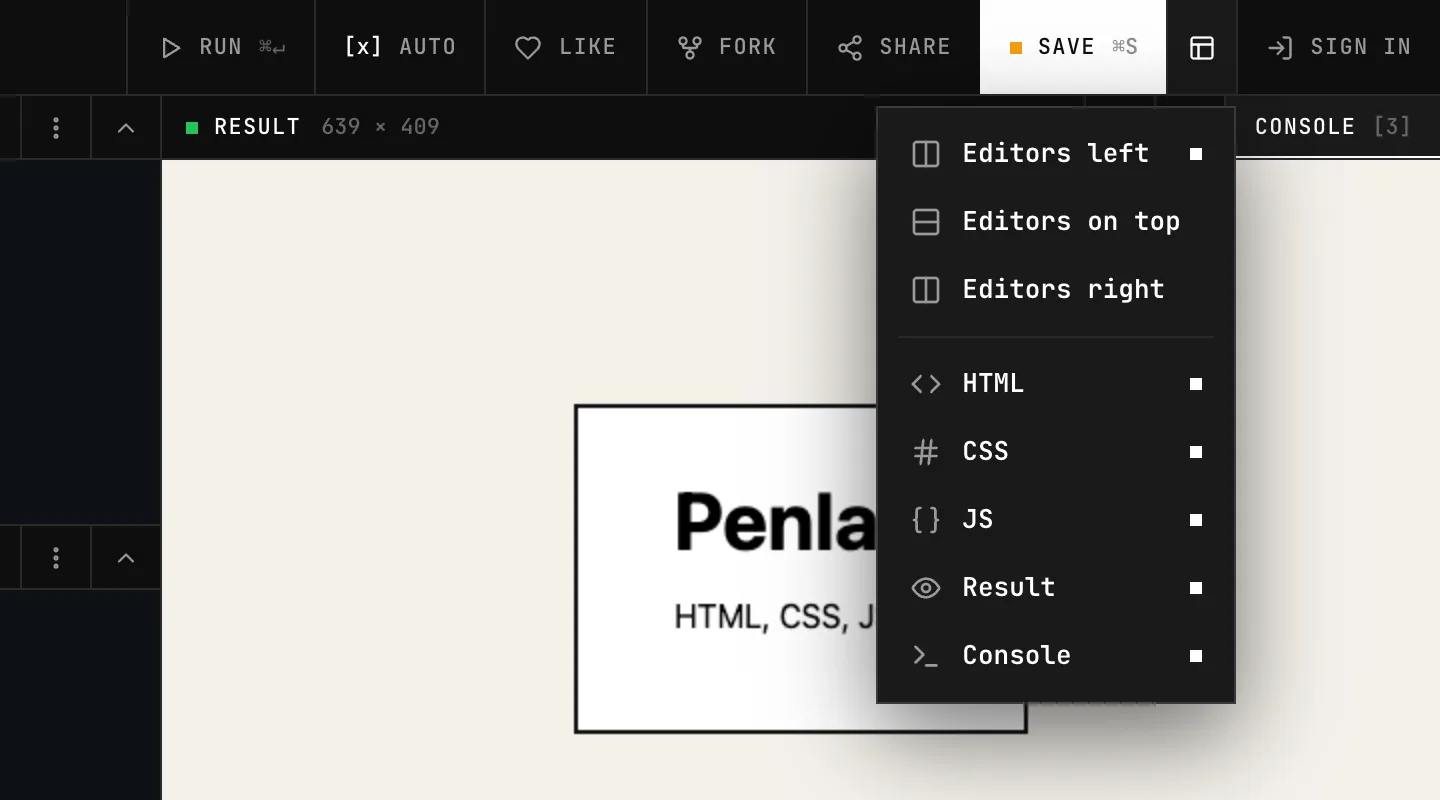
A click on a toggle does not close the menu: you can turn off three blocks in a row and see the result right away. One block always stays — the last one that is on cannot be turned off.
JS and the console, nothing else
This is the case we built it for: working through an algorithm, checking how an array method behaves, writing a small task for a lesson. HTML and CSS are empty, and the result is a white rectangle with nothing to look at. Turn off HTML, CSS and Result, and two columns are left: the code on the left, the output on the right.
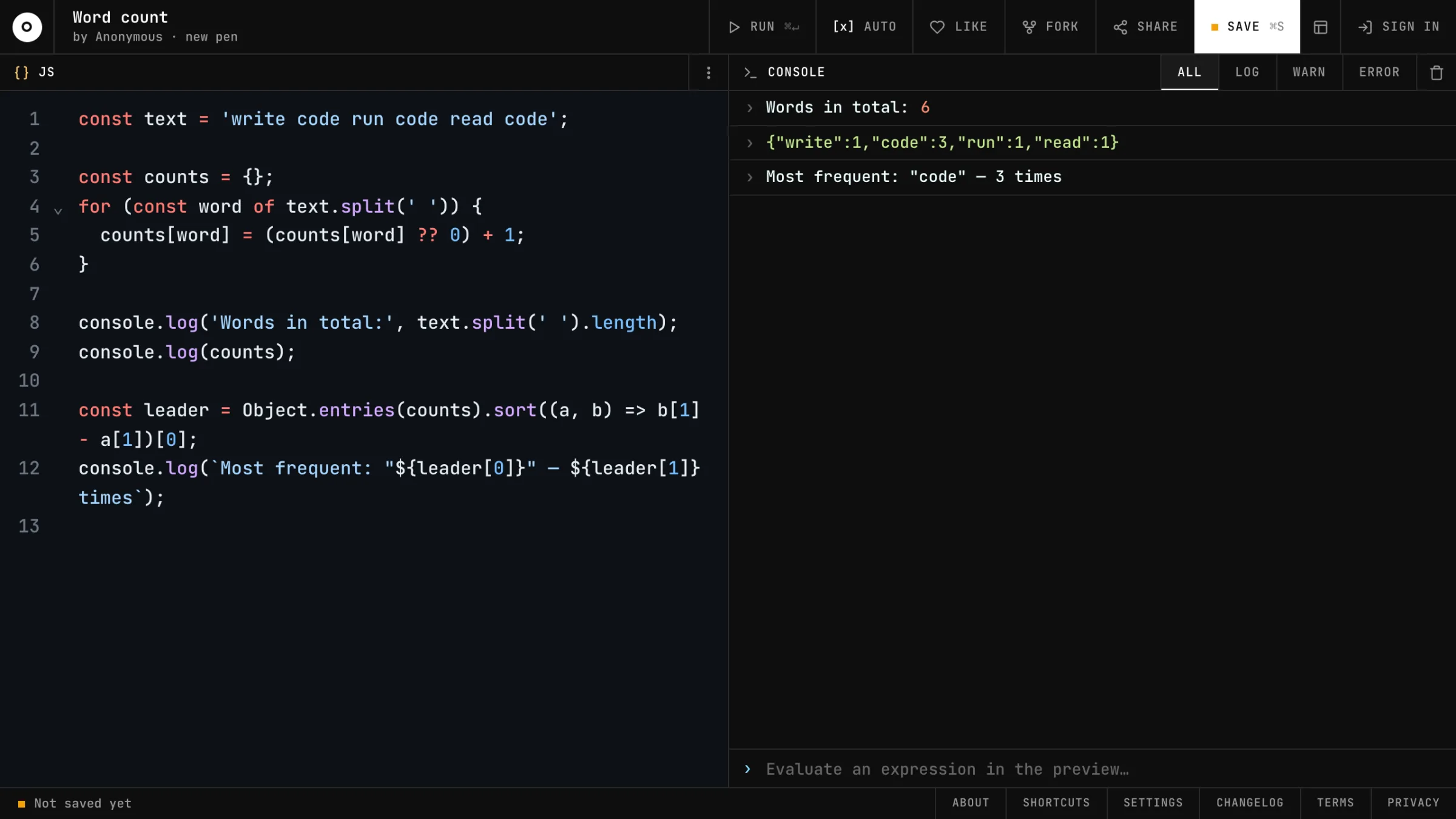
In this mode the console takes the full height on the right, and the expression field at the bottom works as usual: type counts.code and see the answer at once. The code runs the same way as before — in the isolated preview frame; the frame itself is just not shown.
Here is such a pen, live — it has only JS and the console:
Its code:
const text = 'write code run code read code';

const counts = {};
for (const word of text.split(' ')) {
  counts[word] = (counts[word] ?? 0) + 1;
}

console.log('Words in total:', text.split(' ').length);
console.log(counts);
Markup without a script
The opposite case is a pen about HTML and CSS. The JS panel is empty, the console is silent. Turn off JS and Console: the two code panels share the left half, and the right side holds only the result.
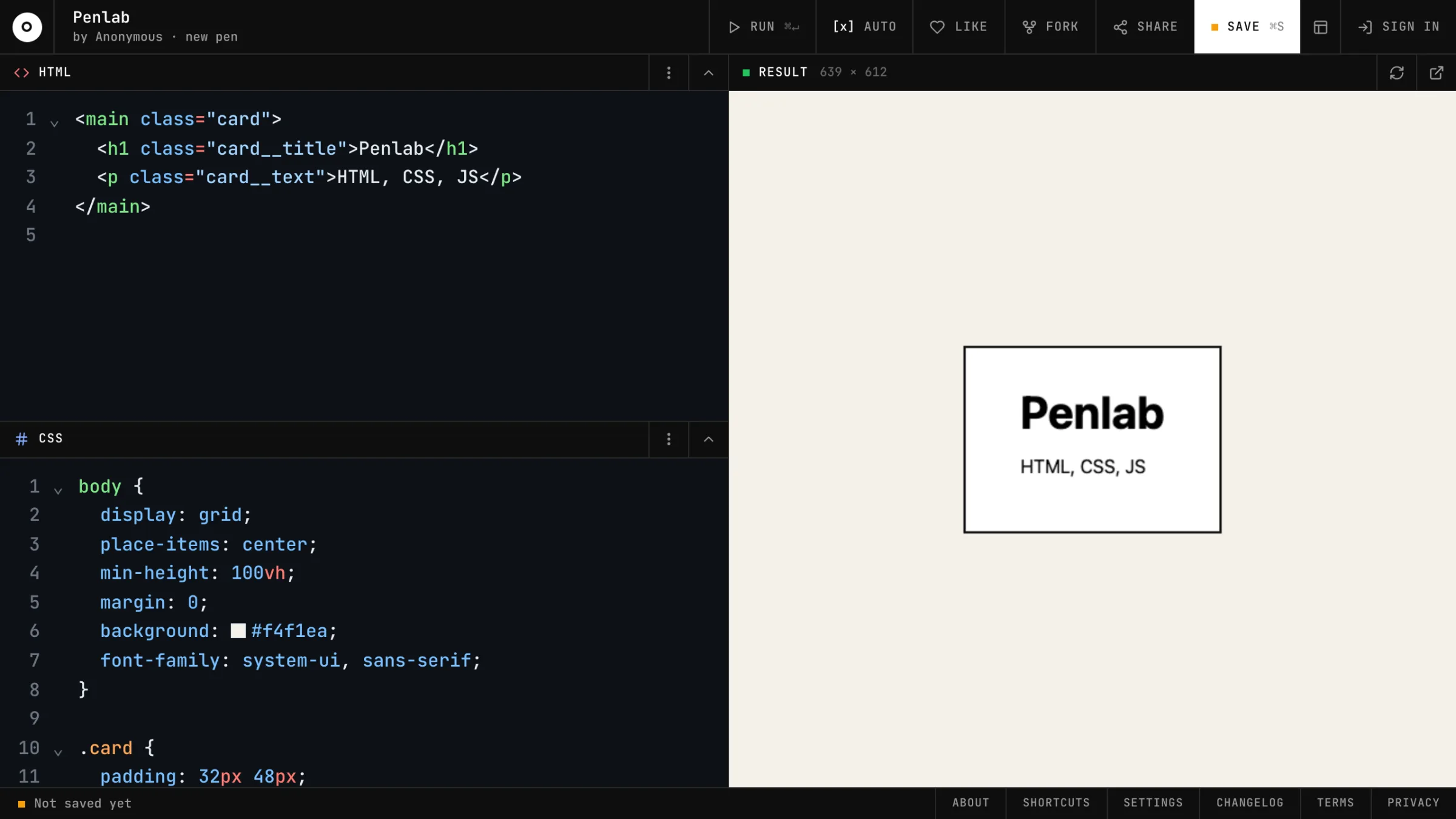
In the same way you can keep only CSS and the result when the whole example lives in the styles, or only the editors without a preview when the pen is a code cheat sheet.
The set of blocks is stored in the pen
The set belongs to the pen, it is not a personal setting. Turn blocks off and press Save (Ctrl+S / ⌘S), and the pen will look the same for everyone who opens it by the link: a student sees JS and the console right away, not five panels of which three are empty.
A few details:
- Switching blocks is an ordinary change to the pen: until you save, the Save button shows a dot, and the editor warns you if you leave the page.
- A block that is off is only hidden. Its code stays: it takes part in the preview, opens in full-screen mode and goes into a fork.
- The menu works on someone else's pen too: you can turn on a hidden panel and read the code. Only you see it, and only until a reload — the author's pen does not change.
- A fork takes the set of blocks along with the code.
- The layout (left, top, right) and the panel sizes are still personal: they are kept in the browser and do not go into the pen.
- On a phone, panels that are off disappear from the tabs above the editor.
A pen embedded on another site and pens in blog posts do not use this set: there the blocks are chosen when embedding, in the Share dialog.
If you need some set of blocks all the time and turning it on every time is a chore, write to us at penlab.info@yandex.com.