Code on a phone: a symbol bar above the keyboard
On a phone a bar now sits above the keyboard: undo, redo, Tab and symbols for HTML, CSS and JS. CSS adds the colon and semicolon itself, JS suggests querySelector and short snippets.
Typing code on a phone is awkward not because of the small screen but because of the keyboard: brackets, quotes, colons and the equals sign hide on the second and third layers. To type <a href="#"> you have to switch layouts several times. Now on a phone the Penlab editor shows a bar with the needed symbols right above the keyboard, and CSS and JS fill in part of the code for you.
A bar above the keyboard
The bar appears on touch screens while the caret is in one of the code editors — HTML, CSS or JS. It sits on the top edge of the keyboard and hides together with it.
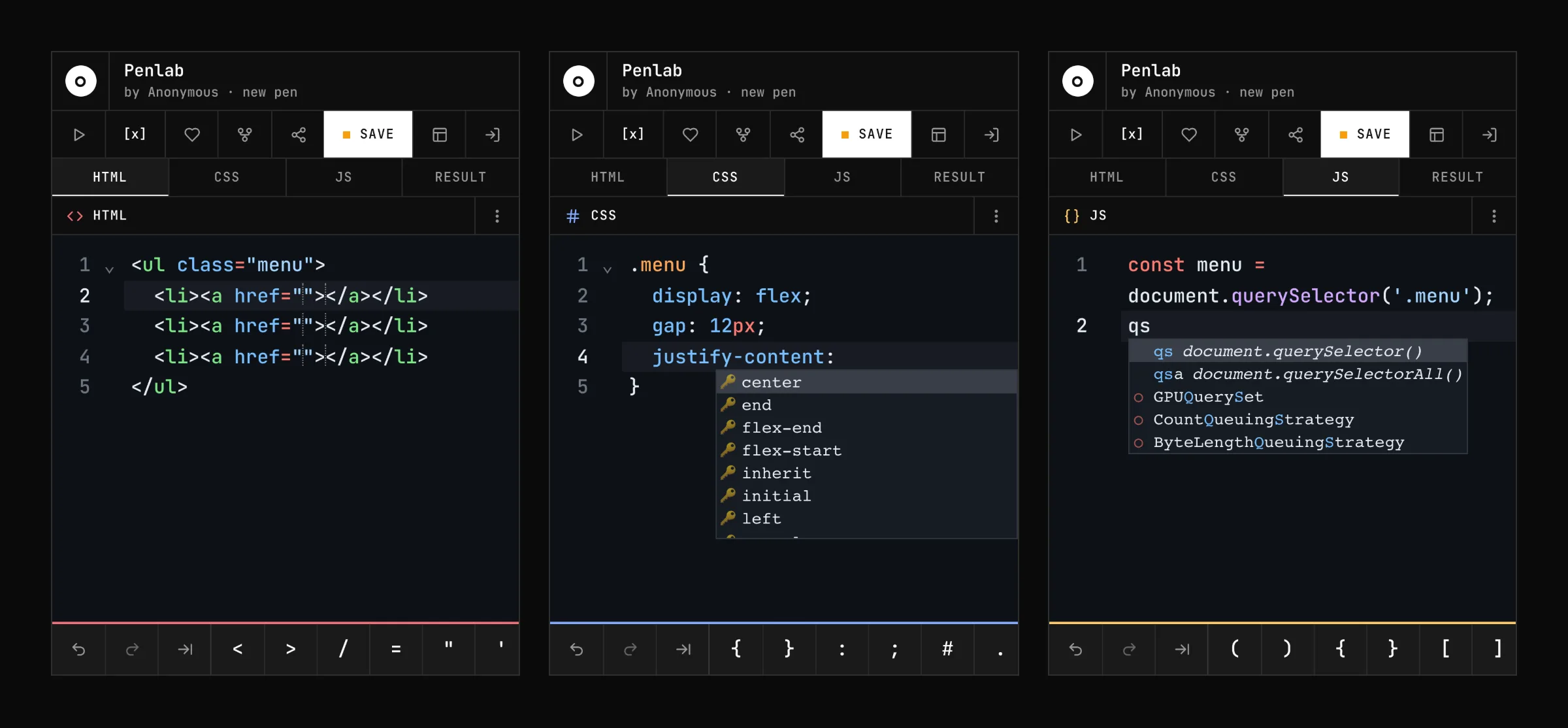
The three buttons on the left are always there:
- Undo and Redo — a step back and forward through the edit history. On a computer these are
Ctrl+ZandCtrl+Shift+Z; an on-screen keyboard has no such shortcuts. - Tab — the same as the Tab key on a computer: it expands an Emmet abbreviation, and when there is none, it indents. Type
ul.menu>li*3>a, press Tab, and you get a list of three items with links.
Then come the symbols, a separate set for each panel:
- HTML:
<>/="'.#! - CSS:
{}:;#.-()%! - JS:
(){}[]=;'`
When the row does not fit on the screen, it scrolls sideways with a finger.
A symbol from the bar goes in the same way as one typed on the keyboard: an opening bracket or quote gets its pair, and > in HTML closes the tag. A tap does not take the focus from the editor — the keyboard stays open and the caret stays where it was.
CSS: the colon and the semicolon
The colon and the semicolon are the most frequent characters in CSS, and on a phone they take the longest to find. Now the editor puts them in for you:
- A space after a property turns into
:. Typedisplayand a space, and you getdisplay:with the list of values open. It works only for known properties: a nested selector likediv spanstays as it is. - Enter at the end of a line adds
;. The linecolor: redbecomescolor: red;after Enter, and the caret moves to a new indented line. If the value is not finished — a bracket is open or the line ends with a comma — no semicolon is added. - Picking a property from the completions also inserts
:and opens the list of values.
Each such insertion is undone as a separate step: the first Undo takes back only the ; or : , and what you typed yourself stays.
The help works on every device, not only on phones — in the CSS panel and in <style> inside HTML. It is turned off in Settings: "CSS: auto colon and semicolon".
JS: completions and snippets
The JS panel now suggests members of browser objects. After document. the list shows querySelector, getElementById, addEventListener and the other methods; the same goes for variables that hold an element.
The most frequent calls have short snippets. Type the abbreviation, pick it in the list, and the whole call goes in, with the caret where you continue:
qs→document.querySelector('')qsa→document.querySelectorAll('')gid→document.getElementById('')ael→addEventListener('', (event) => {})cl→console.log()
For example, instead of typing this whole block on the keyboard:
const menu = document.querySelector('.menu');
menu.addEventListener('click', (event) => {
  console.log(event.target);
});
it is enough to type qs, ael and cl and pick them in the completions.
A larger completion list
The completion list is larger in every panel: 14 pixels instead of 12. On a phone it is easier to hit with a finger, on a computer it is easier to read.
Where this does not apply
The key bar exists only in the editor itself — on the pages of a new pen and a saved pen. An embedded pen on another site is read-only, and the mini-editor on the home page has no JS panel, so there are no keys there. The CSS help and the larger completion list work everywhere you can write code.
If a symbol is missing from the bar on your phone, write to us at penlab.info@yandex.com and we will add it.